Introduction
Connecting your smartphone to a smartwatch can enhance your technological experience by seamlessly merging notifications, fitness tracking, and various apps onto your wrist. By following a few straightforward steps, even those new to both Android and iOS platforms can effortlessly complete the connection process. This guide will walk you through every step, ensuring you’re well-prepared to enjoy the benefits of your interconnected devices.
Pre-Connection Checklist: Requirements and Preparations
Before diving into the connection process, there are essential preparations to ensure a smooth and successful connection. Here’s what you need:
- Compatibility Check: Verify that your phone and smartwatch are compatible. Generally, smartwatches are designed to work with both Android and iOS devices, but specific checks on your device’s model and software version may be necessary.
- Stable Internet Connection: Ensure your phone is connected to a stable internet connection, either through Wi-Fi or mobile data.
- Fully Charged Devices: It’s best to start with both your phone and smartwatch fully charged to prevent any interruptions due to low battery during the connection process.
- Updated Software: Ensure your smartphone’s operating system and smartwatch firmware are up-to-date. This reduces compatibility issues and ensures you have the latest features and security patches.
- Necessary Apps: For Android users, the ‘Wear OS by Google Smartwatch’ app is typically required, while iPhone users should install the ‘Apple Watch’ app, unless using a non-Apple watch which might require the ‘Wear OS by Google’ app.
Preparing these essentials will pave the way for a seamless and efficient connection process.
Connecting Your Android Phone to a Smartwatch: Step-by-Step
Once you’ve ensured all preparations are complete, it’s time to move on to the actual connection process for Android phones.
Download and Install Relevant Apps
- Open the Google Play Store on your Android device.
- Search for the ‘Wear OS by Google Smartwatch’ app.
- Download and install the app.
Enable Bluetooth on Your Phone
- Swipe down from the top of your screen to open the Quick Settings menu.
- Tap the Bluetooth icon to enable it if it’s not already activated.
Pairing Process
- Open the ‘Wear OS by Google’ app on your Android phone.
- Ensure your smartwatch is turned on and in pairing mode.
- Follow the on-screen instructions to select your watch and confirm the pairing code displayed on both devices.
Syncing and Personalizing Settings
- After pairing, the app will guide you through the initial setup.
- Customize watch faces, notification settings, and sync apps according to your preferences.
With these steps, your Android phone and smartwatch should now be connected and ready for use.
Connecting Your iPhone to a Smartwatch: Step-by-Step
Connecting an iPhone to a smartwatch follows a similar straightforward process, but with a few different steps tailored to iOS devices.
Download and Install Required Apps
- Open the App Store on your iPhone.
- Search for and install the ‘Apple Watch’ app (for Apple watches) or ‘Wear OS by Google’ app (for other smartwatches).
Activate Bluetooth on Your iPhone
- Swipe up from the bottom of your screen to open the Control Center (or down from the top-right corner on iPhone X and later).
- Tap the Bluetooth icon to turn it on if it’s not already activated.
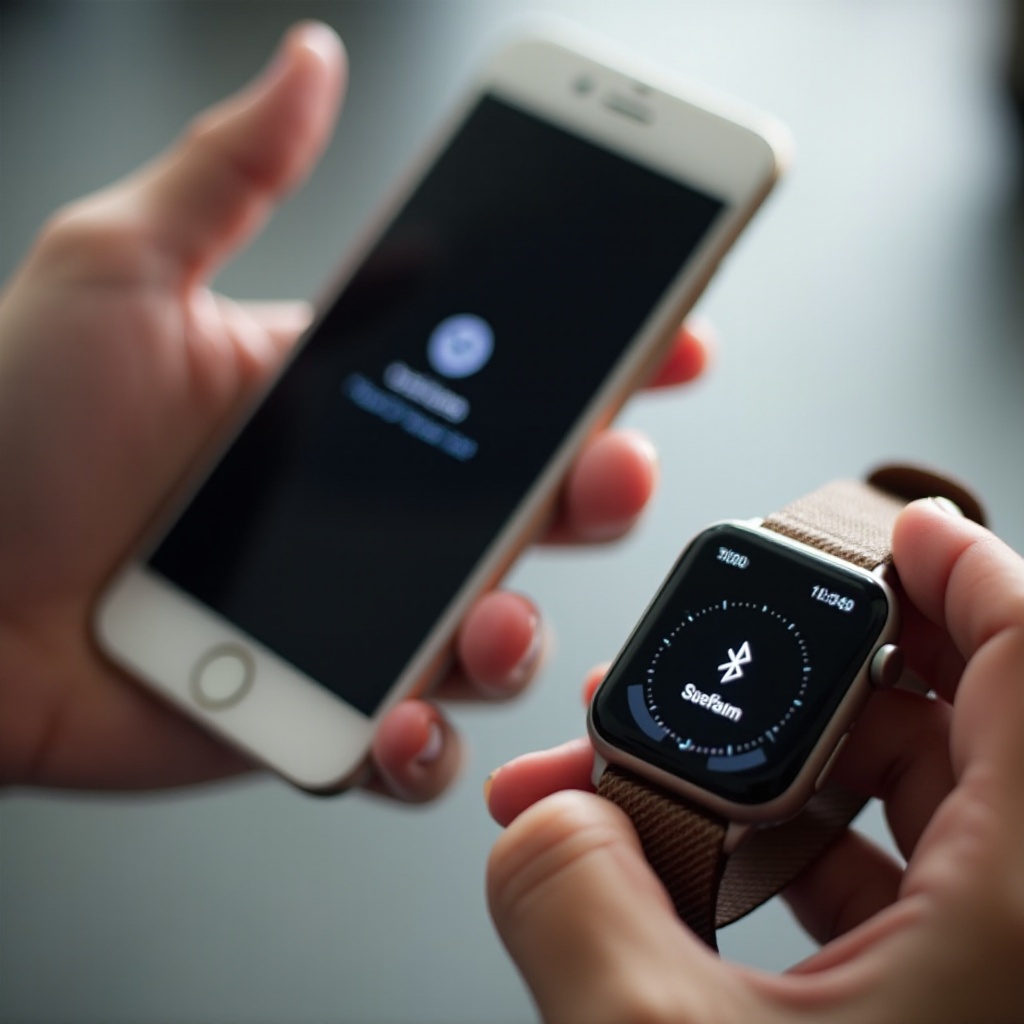
Pairing Process
- Open the appropriate app (Apple Watch or Wear OS) on your iPhone.
- Turn on your smartwatch and follow the pairing instructions displayed.
- Once your watch appears in the list on the app, select it and confirm the pairing code.
Data Sync and Customization
- After pairing, follow the app’s prompts to sync data such as contacts, messages, and app preferences.
- Customize your smartwatch settings for notifications, apps, and watch faces to suit your needs.
With these steps completed, your iPhone should now be successfully paired with your smartwatch.
Troubleshooting Common Connection Issues
Despite following the steps above, connection issues may arise. Here’s how to address common problems:
Common Problems and Their Solutions
- Watch Not Found: Ensure both devices are close together, Bluetooth is enabled, and the smartwatch is in pairing mode.
- Connection Drop: Keep your devices within the recommended range and verify no other Bluetooth devices are interfering.
Resetting Connection if Needed
- On your smartwatch, navigate to Settings > System > Disconnect & reset.
- On your phone, open the Wear OS or Apple Watch app, and follow the steps to remove the watch.
- Re-initiate the pairing process from the beginning.
Contacting Technical Support
If problems persist, contact the manufacturer’s customer support for both your smartphone and smartwatch. They can offer advanced troubleshooting steps specific to your devices.
Maximizing Your Smartwatch Experience
Now that your devices are connected, here are ways to make the most of your smartwatch:
Best Apps to Use
- Fitness and Health: Google Fit, Apple Health, MyFitnessPal.
- Productivity: Todoist, Google Keep, Evernote.
- Music and Media: Spotify, Apple Music, Pandora.
Customizing Notifications and Alerts
- Use the smartwatch app on your phone to select which notifications are pushed to your wrist.
- Customize alert tones and vibration patterns for different notifications to quickly identify them.
Making the Most of Health and Fitness Features
- Regularly track physical activity using built-in sensors.
- Set daily goals and monitor progress through the smartwatch’s fitness app.
- Use heart rate monitoring to gain insights on your physical health.
Conclusion
Connecting your smartphone to a smartwatch involves a few preparatory steps and a straightforward pairing process. With instructions tailored for both Android and iPhone users, you should now be equipped to seamlessly connect and maximize the functionality of your smartwatch. Whether for fitness tracking, staying connected, or enjoying your favorite apps, your integrated technology setup is ready to enhance your daily life.
Frequently Asked Questions
How long does it take to connect a smartwatch to a phone?
Typically, it takes about 5-10 minutes, depending on the devices and the internet connection.
Can I connect multiple smartwatches to one phone?
Yes, you can connect multiple smartwatches, but they can’t be actively used simultaneously.
What should I do if my smartwatch keeps disconnecting?
Ensure both devices have a steady internet connection, Bluetooth remains enabled, and they are within the recommended range. If issues persist, consult the troubleshooting section or contact technical support.